4.7 (3)
Rating
(2)
(1)
(0)
(0)
(0)

Updated: 2026-10-08

Victor Bobrov Written by: Victor Bobrov

Download Microsoft Excel Repair tool

Step-by-step instruction for repairing damaged Microsoft Excel files of all types of formats *.xls, *.xlt, *.xlsx, *.xlsm, *.xltm, *.xltx and *.xlam:

  1. Download, install and open the Excel Repair Toolbox from the site: https://www.repairtoolbox.com/download/ExcelRepairToolboxInstall.exe
  2. Select the damaged MS Excel file on the first page of the wizard.
  3. Click the Analyze button.
  4. Click the Start recovery button to export the data and save the data by selecting:
    1. Export to Excel – export data to a new Excel workbook
    2. Save to file – save data as a new *.xlsx file
  5. Press Finish
  6. Double click on saved …_repaired.xlsx file to open repaired file in Excel 2007-2024 version.

How to repair a damaged Microsoft Excel file

Excel Repair Toolbox was developed to fix corrupted *.xls, *,xlt, *.xlsx, *.xlsm, *.xltm, *.xltx and *.xlam Microsoft Excel files. The Microsoft Excel file repair utility restores data from a corrupted workbooks and worksheets. And software exports information to Microsoft Excel director file later. Excel Repair Toolbox can save a recovered data into new XLSX files. The heuristic search algorithm allow finding data for any damaged file.

Main capabilities of the Microsoft Excel file repair tool include:

  1. Repair data from cells.
  2. Repair all formulas from cells, including functions.
  3. Repair internal and external links by name.
  4. Repair cell formatting (font, number format, line style, fill pattern, text orientation and alignment).
  5. Repair table styles.
  6. Repair number format of cells (with the exception of colors used in number formats).
  7. Repair worksheets.
  1. Repair data in MS Excel 95, MS Excel 98, MS Excel 2000, MS Excel XP, MS Excel 2003, MS Excel 2007, MS Excel 2010, MS Excel 2013, MS Excel 2016, MS Excel 2019, MS Excel 2021, MS Excel 2024.
  2. Repair data from Excel for Microsoft 365.
  3. Repair column widths.
  4. Repair row heights.
  5. Repair cell colors.
  6. Repair cell border colors.
  7. Heuristic search algorithm applied to data in files.
  8. Export data directly to Microsoft Excel.
  9. Intuitive, easy-to-use interface.

Unfortunately, some data types and objects cannot be recovered from a damaged Microsoft Excel worksheet. The list is as follows:

  1. Repair sorting settings
  2. Repair any objects, such as pictures, diagrams, notes and other
  3. Repair print settings
  4. Repair conditional formatting
  5. Repair data validity
  6. Repair hyperlinks
  1. Repair calculation settings
  2. Repair merged cells
  3. Repair range, worksheet and workbook protection
  4. Repair asian phonetic blocks
  5. Repair comments
  6. Recover VBA macros

Requirements

  1. Microsoft Excel should be installed on your computer (though this is not essential)
  2. Windows 98/Me/2000/XP/Vista/7/8/10/11 or
  3. Windows Server 2003/2008/2012/2016 and above
Note:

Excel Repair Toolbox is not open source software or a freeware tool. Excel Repair Toolbox not include donate inside. This is a software with a free DEMO easy version. The tool is not distributed under the GNU General Public License (GPL) or GNU Lesser General Public License (LGPL). Our software development project team has invested a lot of time and efforts into making it a remarkably efficient product and we have no intention to distribute it as a free tool. You need Download Microsoft Excel repair software and use it.

FAQ

Answer:

Yes, Excel Repair Toolbox can recover Excel file/Worksheets that contain any formulas. You need to setup appropriate settings via main menu Settings. Later set Save FORMULA cells as Formula.

Answer:

The error File Error: Data May Have Been Lost indicates corruption of workbook. You can try to fix this damage by use our tool.

Answer:

You can quickly repair corrupted file using Excel Repair Toolbox.

Answer:

Yes, this tool can accurately repairs formats and borders of cells in damaged Excel files.

Answer:

Export to Excel can be available only if Microsoft Excel installed on PC. Save to file is fastest way to save a result of recovery. But saved .xlsx file are native format for Excel 2007/2010/2013/2016/2019/2021/2024 only.

Buying Excel Repair Toolbox

Personal License $25

For personal use for noncommercial purposes

Business License $39

For legal use in enterprise, commercial and governmental environments

Site License $49

For using on several computers of the customer (up to 100 electronic devices) in one building or distributed between several buildings

Cost of online file recovery

paypro

PayPro Global (PayPro Global, Inc., 250 The East Mall street, Etobicoke, ON Canada, M9B 0A9) is the fastest growing eCommerce company that develops customized solutions to help software producers to easily and effectively sell software online. PayPro Global supports more than one hundred currencies, all major credit cards, and a wide variety of payment options. PayPro Global offers efficient customer support 24/7 and provides personal attention to customers having special requirements.

Buying the License Renewal of Excel Repair Toolbox

Purchase the License Renewal 1 Year Online

Personal License $12

For personal use for noncommercial purposes

Business License $19

For legal use in enterprise, commercial and governmental environments

Site License $25

For using on several computers of the customer (up to 100 electronic devices) in one building or distributed between several buildings

How it Works?

  1. Download software from website.Download

  2. Start Install software:

    1. Press on downloaded installation file in browser
    2. Select a downloaded installation file in Windows Explorer and press Enter or double click on it.
  3. Please confirm warning message.

    open file
  4. Run installation wizard.

  5. Run program:

    1. Double click on icon on desktop
    2. or
    3. Select from main menu: Start | Programs | Excel Repair Toolbox | Excel Repair Toolbox.
    start excel
  6. Please select a damaged Microsoft Excel file on first page of repair wizard in Excel Repair Toolbox.

    select file
  7. Press Analyze button.

    analyze button
  8. Please confirm a start of recovery process.

    confirm
  9. Program will read and analyze a damaged file a several minutes. Later you can see a grid with a recovered cell from Excel file. Please press the Start recovery button to export a recovered data into new Microsoft Excel file or new Microsoft Excel workbook directly.

    start recovery
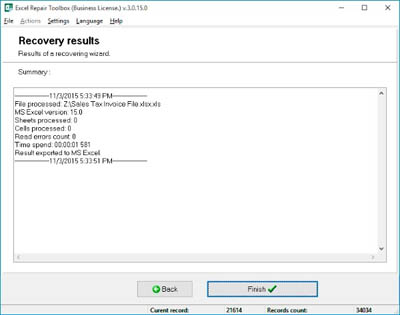
  10. On the last page, you will find a detailed log of the recovery process.
    log

Errors

With Excel Repair Toolbox you can fix next errors:

  • We found a problem with some content in FileName.xlsx (xls).Do you want us to try to recover as much as we can? If you trust the source of this workbook, Click Yes
  • Filename.xlsx cannot be accessed. The file may be read-only, or you may be trying to access a read-only location. Or, the server the document is stored on may not be responding.
  • Excel cannot complete this task with available resources
  • This file is not in a recognizable format.
  • Excel found unreadable content in "filename.xlsx".
  • File format not valid
  • Microsoft Excel has encountered a problem and needs to close.
  • Unexpected error
  • Excel unable to read file
  • Cannot access read-only document
  • The document Filename caused a serious error the last time it was opened
  • Cannot open .xls file
  • This file is not in a recognizable format.
  • The file is corrupt and cannot be opened
  • Excel error cannot open file because the file format or file extension is not valid.
  • Excel cannot open the file .xlsx because the file format or file extension is not valid.
  • Error 1004
  • Error 13
  • Error 91
  • File in Use error opening Excel 2007 Files.
  • .xls file format is not valid

Screenshots

Selecting a damaged Microsoft Excel worksheet
Viewing the information you have recovered
Exporting the recovered information to Microsoft Excel
Viewing the exported information

Video Manual

Real customer reviews from TrustPilot

Victor G. Bobrov, Senior Software Engineer.

MCSD, MCDBA

An expert in data structures, data storage, and file recovery with over 20 years of experience.

Customer's reviews and ratings

The service helped me restore the xls file in a few clicks

Max 09-06-2023

Knowledgeable people will understand how sad it is to lose your project. Thank you for such a convenient and most importantly simple service.

illustrator_ka 09-02-2023

In principle, the service is not bad, the only thing that was not clear was the recovery process.

ilya 07-24-2023