
Annette
United States
Nov 25, 2024
5 out of 5 stars
Worked flawlessly to repair .exe files I had on an old (2005) cd. Installed and ready to use again. Very pleased!
Step-by-step instructions for repairing Microsoft OneNote data and records. How to export notes, images, media files, attachments and other objects from damaged *.one/*.onenote files:

How to recover OneNote files after computer restore or other disasters?
Main capabilities of the OneNote repair software include:
Just Download and install OneNote recovery program (OneNote Repair Toolbox). Later you can to do OneNote file recovery procedure in few clicks. OneNote data recovery is simple extraction of data (files and notes) from corrupted storage in separate files. You can fix corrupted OneNote file without a special knowledge. Microsoft Office OneNote recover function cannot repair your file without backups and temporary copies of files. But OneNote Repair Toolbox can fix a corrupted OneNote storage without backups.
Requirements
Note:
- OneNote Repair Toolbox application is issued by the professional software team development of Repairtoolbox.com, this program is not released under GNU General Public License (GPL). Like any other open source program or free software, the users of OneNote Repair Toolbox may get the installer of Free DEMO. However, unlike open source solutions, some kind of modifications is not allowed in this tool.
- OneNote Repair Toolbox do not repair content of password protected Microsoft OneNote .one or .onenote files.
Buying OneNote Repair Toolbox
For personal use for noncommercial purposes
For legal use in enterprise, commercial and governmental environments
For using on several computers of the customer (up to 100 electronic devices) in one building or distributed between several buildings

PayPro Global (PayPro Global, Inc., 250 The East Mall street, Etobicoke, ON Canada, M9B 0A9) is the fastest growing eCommerce company that develops customized solutions to help software producers to easily and effectively sell software online. PayPro Global supports more than one hundred currencies, all major credit cards, and a wide variety of payment options. PayPro Global offers efficient customer support 24/7 and provides personal attention to customers having special requirements.
How it Works?
Download software from website.Download
Start Install software:
Please confirm warning message.

Run installation wizard.
Run program:

Please select a damaged OneNote file on first page of repair wizard in OneNote Repair Toolbox.

Press on Analyze button.
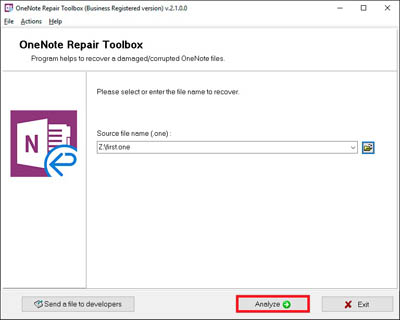
Please confirm a start of recovery process.

Program will read and analyze a damaged file a several minutes. Later you can see list of recovered records and media files.

Press on Next button.
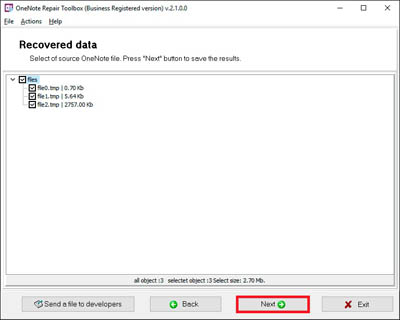
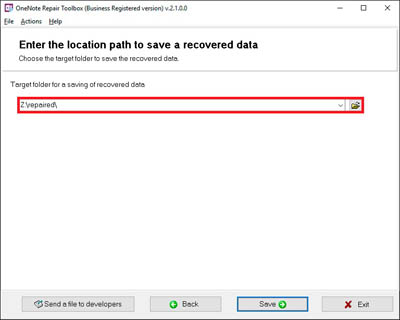
Select path of save folder.
Press on Save button.
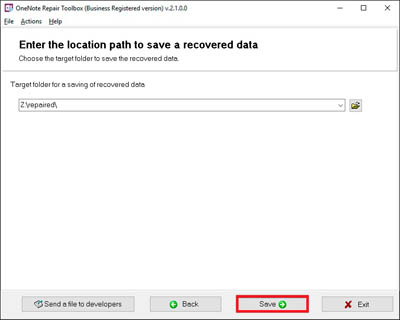
On last page shows a detailed log of recovery process.
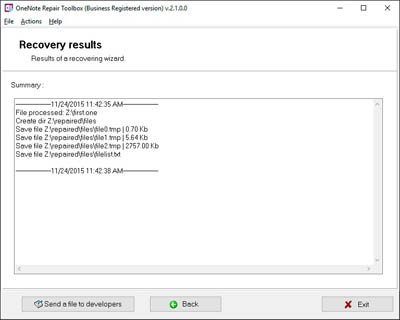
Screenshots


Video Manual


Just loved the simple interface and its great work.
Customer's reviews and ratings


You like insurance for me: all enclosed files from OneNote was recovered!
Thanks! and good buy!