
Annette
United States
Nov 25, 2024
5 out of 5 stars
Worked flawlessly to repair .exe files I had on an old (2005) cd. Installed and ready to use again. Very pleased!
Guidelines for repairing letters, contacts, reminders, appointments, tasks, notes and other data from damaged *.pst or *.ost Microsoft Outlook files of all versions:

Information and data restoration from corrupted Microsoft Outlook *.PST and *.OST files all versions (ANSI and Unicode). The MS Outlook PST repair tool also enables you to convert *.OST files to *.PST format.
Main capabilities of the Microsoft Outlook file repair tool include:
Requirements
Read more...
Note:
- Outlook Repair Toolbox do not support a recovering of contact groups yet.
- The software team development of Outlook Repair Toolbox is distributed under Try-Before-Buy license that does not belong to GNU General Public License (GPL) or something like that. Despite it is not freeware, free version of Outlook Repair Toolbox have a Free DEMO version for anyone. Please note Outlook Repair Toolbox is not open source program or free software so you should donate to the professional team development of RepairToolbox.com to remove all limitations and keep on using this program for as long as you need.
FAQ
Installation steps:
Note: by default, the 32-bit version of Microsoft Outlook is installed.
Answer:
To repair large PST files bigger than 4 GB, the following must be installed on the computer:
If they are, the Outlook Repair Toolbox program is not limited by the amount of data it can handle in 32-bit systems and will be able to completely restore and save the data in a new PST file.
If Microsoft Outlook 32-bit is installed on the computer, then the operation of the Outlook Repair Toolbox program is limited by the RAM that is needed to work with large PST files. If the installation disk or software distribution package is available, Microsoft Outlook 64-bit can be installed instead of the 32-bit version of Microsoft Outlook. For more detailed information about installing the 64-bit version of Microsoft Outlook, please consult the previous question.
Answer:
Conversion of a large OST file requires that all the necessary software components be installed on a 64-bit system.
Only in this case will you be able to overcome RAM limitations and convert OST files of virtually any size.
If all these conditions are met, you can proceed to data conversion. Start Outlook Repair Toolbox and do the following:
The process of reading an OST file and exporting its data takes some time, and its duration depends on the performance of your computer and the speed of your hard drive.
Note:When Microsoft Outlook is installed with default settings, the 32-bit version is installed. To learn how to install the 64-bit version of Microsoft Outlook, read first question.
Buying Outlook Repair Toolbox
For personal use for noncommercial purposes
For legal use in enterprise, commercial and governmental environments
For using on several computers of the customer (up to 100 electronic devices) in one building or distributed between several buildings
Cost of online file recovery

PayPro Global (PayPro Global, Inc., 250 The East Mall street, Etobicoke, ON Canada, M9B 0A9) is the fastest growing eCommerce company that develops customized solutions to help software producers to easily and effectively sell software online. PayPro Global supports more than one hundred currencies, all major credit cards, and a wide variety of payment options. PayPro Global offers efficient customer support 24/7 and provides personal attention to customers having special requirements.
How it Works?
Download software from website.Download
Start Install software:
Please confirm warning message.

Run installation wizard.
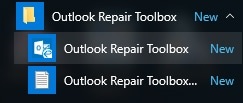
Run program:
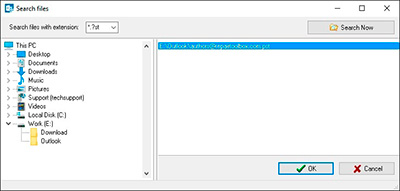
Please select a damaged Microsoft Outlook *.pst file.

You can select a damaged file from the Microsoft Mail Profile or directly from the disk.
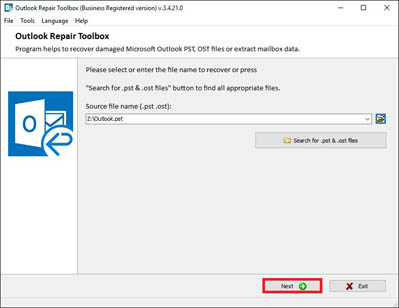
And click the Next button.
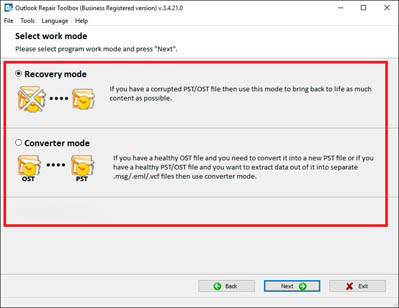
Please select a mode for program use:
Please confirm a start of recovery process.

On the second page, the customer can view and select the recovered objects that are to be saved (emails, contacts, appointments and so on).
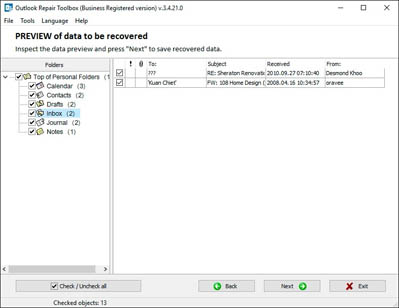
Click the Next button.

Please select a target folder for saving the recovered data to.
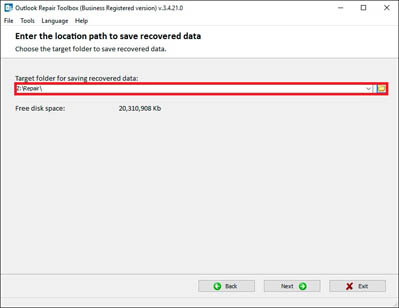
And click the Next button.
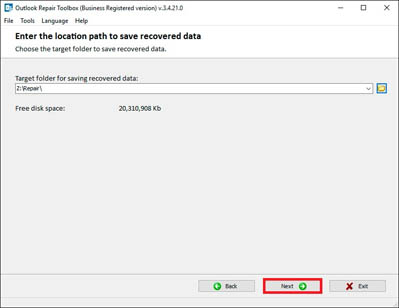
Please select the type of the recovered content that is to be saved.

On the last page, you will find a detailed log of the recovery process.
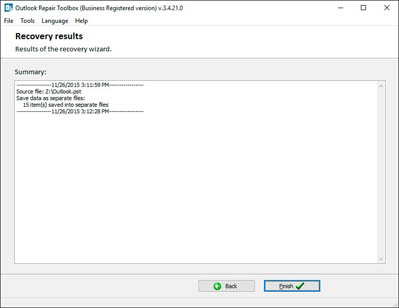
Errors
With Outlook Repair Toolbox you can fix next errors:
Screenshots


Video Manual


Just loved the simple interface and its great work.
Customer's reviews and ratings
Excellent tool indeed.
thank you
excellent
A little slow but very effective
I thank you for your help and have a great day!
Great email recovery product
I needed to restore the ost file. The result made me happy. The site has been noted.


Very good software. I would recommend it to everyone.