
Annette
United States
Nov 25, 2024
5 out of 5 stars
Worked flawlessly to repair .exe files I had on an old (2005) cd. Installed and ready to use again. Very pleased!
Description of steps to repair information from damaged databases using *.dbf format (FoxPro, dBase IV, Clipper, 1С and others):
DBF Repair Toolbox restores corrupted DBF database files, used in FoxPro, Clipper, dBase and other programs. Software reads a corrupted database and saves a recovered data into new one.
The DBF repair tool complete capabilities include:
Requirements
Note:DBF Repair Toolbox not include donate, GPL, MPL, GNU LGPL or other freeware license. DBF Repair Toolbox is not open source project. Repair Toolbox team develop a software with free DEMO version.
Buying DBF Repair Toolbox
For personal use for noncommercial purposes
For legal use in enterprise, commercial and governmental environments
For using on several computers of the customer (up to 100 electronic devices) in one building or distributed between several buildings
Cost of online file recovery

PayPro Global (PayPro Global, Inc., 250 The East Mall street, Etobicoke, ON Canada, M9B 0A9) is the fastest growing eCommerce company that develops customized solutions to help software producers to easily and effectively sell software online. PayPro Global supports more than one hundred currencies, all major credit cards, and a wide variety of payment options. PayPro Global offers efficient customer support 24/7 and provides personal attention to customers having special requirements.
How it Works?
Download software from website.Download
Start Install software:
Please confirm warning message.

Run installation wizard.
Run program:

Please select a damaged DBF file on first page of repair wizard in DBF Repair Toolbox.

Press Analyze button.

Please confirm a start of recovery process.

Program will read and analyze a damaged file a several minutes. Later you can see content of damaged *.dbf file.
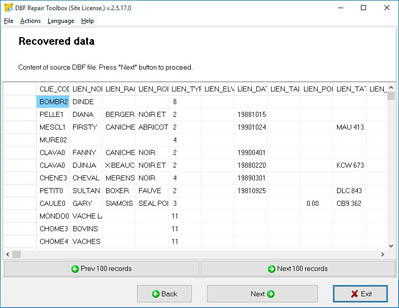
Press Next button.

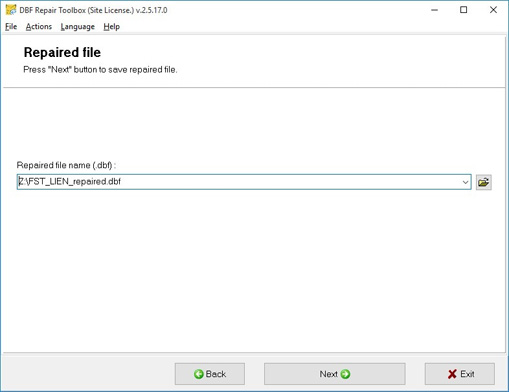
Select file name for new recovered file.

Select format of destination recovered file.
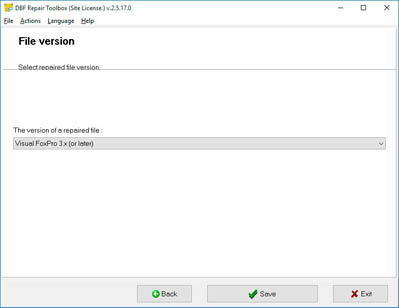
Press on Save button.

On last page shows a detailed log of recovery process.

Errors
With DBF Repair Toolbox you can fix next errors:
Screenshots



Video Manual


Just loved the simple interface and its great work.
Customer's reviews and ratings
I was not too lazy and tried to restore my file. Everything worked out. I advise.


Great tool for DBF recovery!